
Requirements
The module takes payment for the outstanding balance of an eligible Perfex invoice through Square-hosted checkout. Perfex records the payment after Square confirms it. The original payment can be refunded from Perfex by authorised staff.
- A self-hosted installation of Perfex CRM Next v1.0.1 or later, with the Invoices module enabled. Perfex CRM Classic (CodeIgniter) is incompatible. The tested Next version is v1.0.1. The PHP ZIP extension is required for module uploads.
- A Perfex super admin account for Square connection and setup.
- A live Square merchant account with an eligible card-processing location and a Square Developer application owned by your organisation.
- A publicly reachable HTTPS Perfex hostname to receive Square payment and refund notifications.
- A working Perfex scheduler and the queue setup that matches its configured driver.
Already taking payments with Square? Use your existing Square login and merchant account. Open an application you control in Square Developer Console or create one for Perfex. The application provides your access token and webhook subscription. Your existing Square merchant account receives the payments.
Perfex Next server requirements · Square Developer Console guide
1. Install the module
- Extract the purchase download and locate SquarePayments-1.0.0.zip.
- In Perfex, open Settings → Application → Modules. Upload the inner module ZIP and enable Square Payments.
- Open Settings → Finance → Payment Gateways. Find the Square row and select Configure to edit its settings.
For a first-time installation, upload the latest ZIP directly. If Perfex opens its maintenance screen after you enable Square Payments, complete the database migration step so Perfex can create the module tables. If you manage modules from the command line, run php artisan module:migrate SquarePayments after enabling the module.
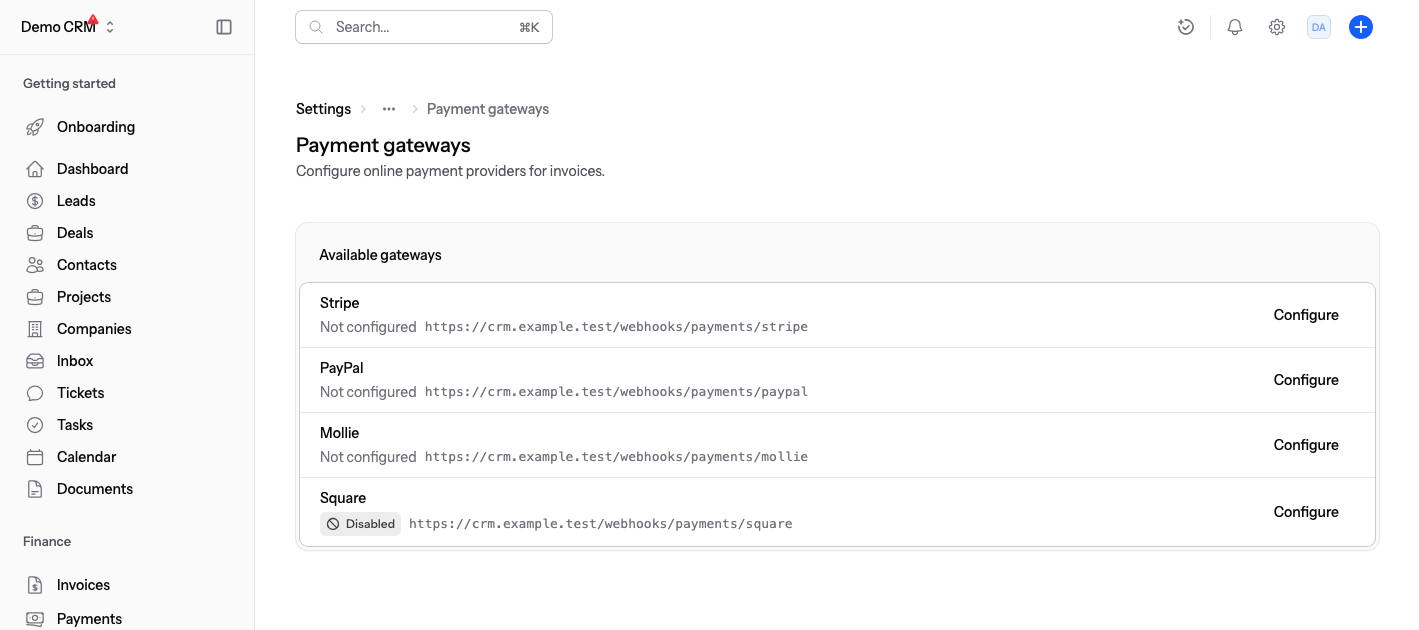
2. Connect your live Square account
- Sign in to the Square Developer Console with the Square account that should receive payments. Open an application your business controls, or create one for Perfex using that account.
- Open Credentials and select Production at the top. Copy the Production Access token.
- In Perfex, go to Settings → Finance → Payment Gateways → Square → Configure. Turn Test / sandbox mode off. Keep Enabled off while you connect the account. Paste the token into Production personal access token.
- With one eligible Square location, leave Production location ID blank for automatic selection. With multiple locations, open Locations in the same Square application and copy the intended location’s ID. Select Save.
- Wait for the scheduled check or run
php artisan square:verifyfrom the Perfex application directory. Reopen Configure and confirm that Selected location shows the intended location and currency.
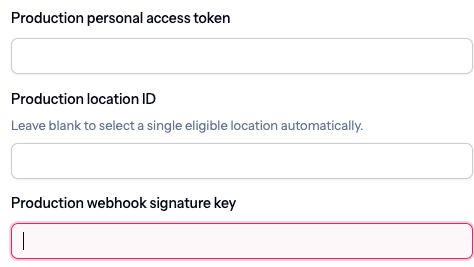
Enter secrets only in your own Perfex installation. Keep access tokens and signing keys out of screenshots, tickets and shared setup notes.
Square Developer Console guide · Square credentials · Square Locations guide
3. Set up and verify live webhooks
- In Square → Configure, copy the exact Webhook URL near the bottom of the dialog. In Square Developer Console, open the same application and select Production.
-
Go to Webhooks → Subscriptions → Add subscription and fill in the form.
Field in Square What to select Subscription name A label such as Perfex Next Production. Notification URL Paste the exact Webhook URL from Perfex, including any port. Square must be able to reach it over HTTPS. API version 2026-11-18, the version used by this module.Payments (2) Select payment.createdandpayment.updated.Refunds (2) Select refund.createdandrefund.updated.Select only those four events. Leave the three bulk event checkboxes and the other categories, including Checkout and Invoices, unchecked. Select Save.
- Open the saved subscription. Under Endpoint Details → Signature Key, select Show. Copy the key into Production webhook signature key in Perfex.
- In the same Perfex dialog, keep Test / sandbox mode off. Set Fixed surcharge and Percent surcharge (%) to zero. If you set a list of Supported currencies, include your Square location’s currency. Turn on Enabled and select Save so Perfex can accept signed delivery.
- After the next normal sale on that same Square merchant account, check Webhooks → Logs in Square and reopen Configure in Perfex. The Waiting for a signed webhook delivery notice clears when Perfex verifies a signed event for that merchant. An ordinary sale through Square Point of Sale, Square Terminal or a Square Invoice can supply this event.
Square appears on eligible invoices after the location and signed delivery are verified. Square’s test button can use sample merchant data. A successful response to that sample can leave the waiting notice in place.
Square subscription setup · Square payment events · Square signature verification
4. Take payments and issue refunds
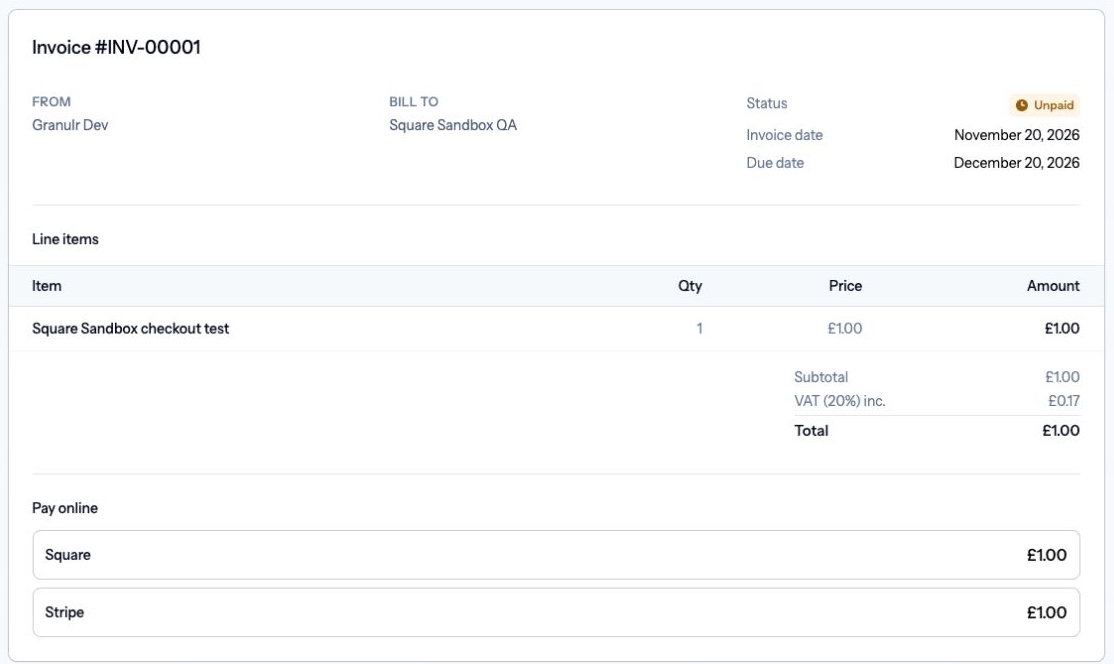
- Open the customer page of an unpaid invoice in the Square location’s currency. Confirm that Square appears under Pay online.
- Send the invoice through your usual Perfex workflow. The customer chooses Square and pays the outstanding invoice balance on Square’s checkout page.
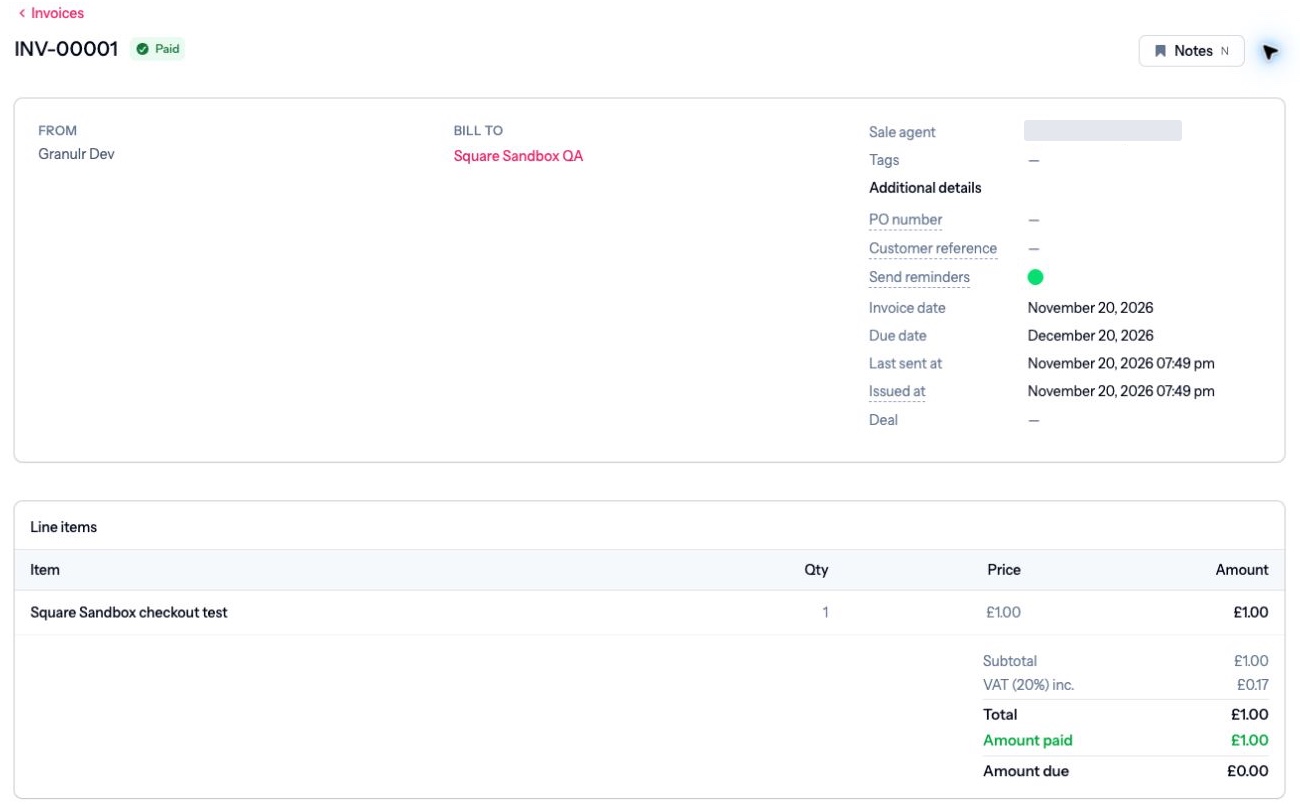
- After the customer pays, confirm that Perfex shows the payment in the invoice’s Payments section and updates the balance. If it’s still pending, check Square’s webhook log and the Perfex queue.
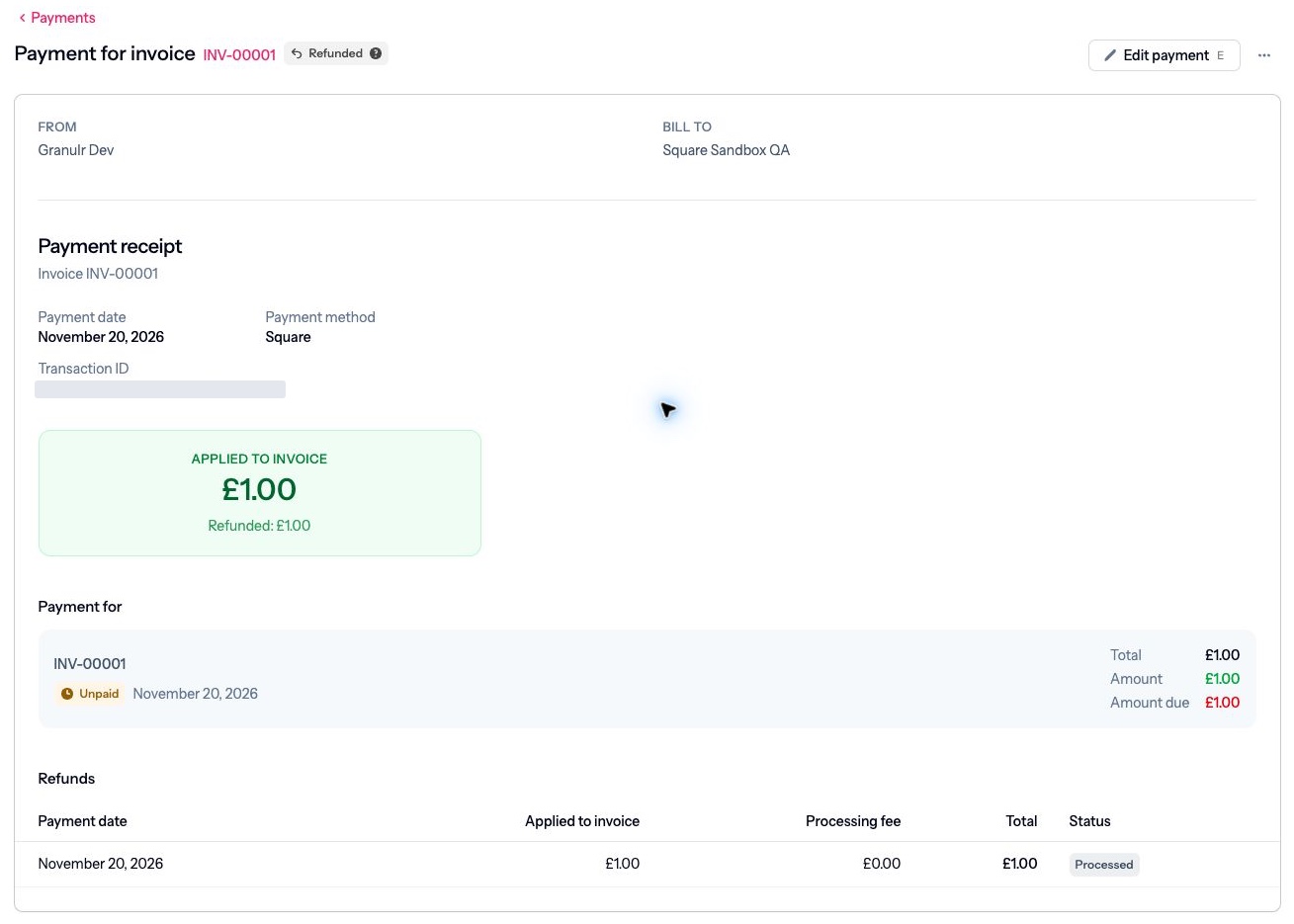
- To refund a customer, open their original Square payment in Perfex and choose Refund payment. The action requests the remaining refundable amount against the original Square payment.
- Check the outcome on the payment. A pending refund stays pending until Square confirms it. A failed or rejected refund leaves the collected amount unchanged. The module can also reflect refunds made on the original payment in Square, including partial refunds.
Operations and upgrades
Scheduler and reconciliation
Set up the Perfex cron job to invoke Laravel’s scheduler every minute. The Square module checks unverified Square settings and runs a reconciliation batch every five minutes. It checks outstanding payments and refunds when Square is enabled. If the queue uses Database or Redis, keep its worker running. The default Cron queue uses the scheduler.
* * * * * php /path/to/perfex/artisan schedule:runFor a manual check, run this command from the Perfex application directory using the same PHP version and application user as your scheduler. It checks batches for both environments.
php artisan square:reconcileOn a native payment, Check Square refunds looks for provider-side refunds to reconcile.
Reconnect or change a location
Choose the original environment when reconnecting. Review outstanding checkouts and refunds before replacing a merchant connection. Historical payments retain the merchant account and location used at the time. If credentials for the original merchant are no longer connected, restore that account in the correct environment to manage its earlier payment or refund.
Upgrade safely
- Check the new package’s version requirements and test it on a copy of the installation.
- Back up the database, installed module files and the Perfex encryption key. Retain the previous package and protect the backup.
- To upgrade from 0.1.4, upload SquarePayments-1.0.0.zip under Settings → Application → Modules to replace the installed module. This release uses the existing migration history.
- Verify the connection and delivery status for each configured environment. If you used OAuth on an earlier build, enter the personal access token for the same Square merchant in Configure before taking new invoice payments. Existing payments and refunds keep their original references. Check the scheduler and queue, then test an eligible invoice and a refund on the staging copy.
Troubleshooting
| Symptom | What to check |
|---|---|
| Location verification is pending or failed | Run php artisan square:verify from the Perfex application directory and check the result. Copy the token again from the correct Square app and environment if needed. Reopen Configure to see the latest status. |
| No eligible location appears | Check the connected merchant, environment and location status in Square. The location needs card-processing capability and a supported currency. |
| Square Developer Console cannot create the subscription | Confirm that the notification URL is the exact public HTTPS address from Perfex. If the console still shows a generic error, use Square’s Create webhook subscription API with the same application’s access token, API version and four events from step 3. For Sandbox, use the Sandbox endpoint and token. Square subscription API |
| Waiting for a signed delivery | Confirm Square is Enabled, the external HTTPS URL is reachable, all four events are subscribed and the saved signature key matches the subscription. Check the delivery in Square’s webhook logs after the next normal sale on your live account. For staging, see the optional Sandbox instructions below. |
| Square is missing from an invoice | Check that the invoice is payable, Square is enabled, Test mode matches the connected environment, signed delivery is verified, both fees are zero and the invoice currency matches the active Square location and allowed Perfex currencies. |
| Square shows a completed payment, but the invoice is still unpaid | Check the original payment environment and merchant, Square webhook delivery and Perfex Platform Health. Run the reconciliation command. If the invoice currency changed after checkout, reconcile the Square payment ID and original invoice currency with your finance team. Avoid entering a duplicate manual payment while reconciliation is pending. |
| A refund remains pending or could not be sent | Check the payment and refund in the original Square account. Use Check Square refunds or the reconciliation command. Restore the original merchant connection if it changed. Wait for the existing refund’s final state before starting another request. |
| Payments were missed while Square was disabled | Restore the correct connection and settings, re-enable Square and run the reconciliation command. A verified capture can be reconciled through the saved Perfex checkout record. |
For a reverse proxy, verify the public Perfex URL and trusted proxy settings before copying the webhook URL. A hostname or HTTPS scheme mismatch changes the URL checked against Square’s signature. Square webhook event logs · Perfex troubleshooting
Optional Sandbox test
Use a separate Perfex test installation with a public HTTPS URL to try the full workflow. Confirmed Sandbox payments update the matching test invoice on that installation.
- In Square Developer Console, choose Sandbox and copy the Sandbox Access token under Credentials.
- In your test installation’s Square → Configure dialog, turn Test / sandbox mode on and keep Enabled off while you connect. Paste the token into Sandbox personal access token. If you have multiple eligible test locations, enter the intended Sandbox location ID. Save and run
php artisan square:verifyor wait for the scheduled check. - Create a separate Sandbox subscription in Square using your test installation’s exact Webhook URL, API version and the four events in step 3. Paste its signature key into Sandbox webhook signature key in Perfex, keep both surcharges at zero, then turn on Enabled and save.
- Verify a signed delivery from the connected Sandbox seller. If Square’s sample event uses a different merchant, generate an event in the CreatePayment API Explorer with Sandbox selected. Use the connected test seller’s token, its location ID, the test
source_idcnon:card-nonce-ok, a fresh idempotency key and an amount in the location currency’s minor units. Check the delivery in Square’s logs and reopen Perfex Configure to confirm the waiting notice clears.
On localhost you can perform the token and location check with Enabled off and the webhook signature key blank. Use the public HTTPS test installation for the signed delivery, checkout and refund steps.
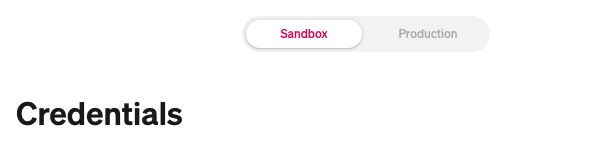
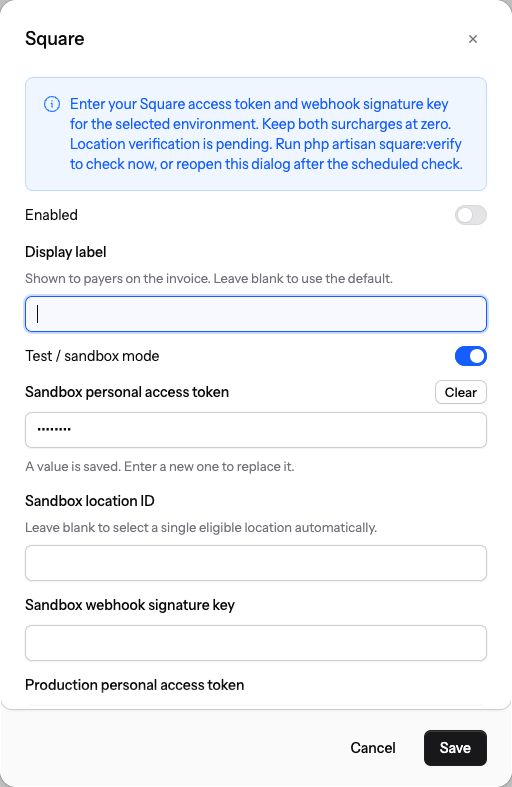
Checkout and refund on the test installation
- Open a payable test invoice in the Square location’s currency and choose Square under Pay online.
- In Square’s Checkout API Sandbox Testing Panel, select Next, then Test Payment.
- After Checkout Complete, reopen the Perfex invoice and check that it shows one payment and the updated balance.
- Open the original payment in Perfex, select Refund payment and check that the refund shows as Processed after Square confirms it.

Compatibility and support
Version 1.0.0 requires Perfex CRM Next v1.0.1 or later. Automated coverage uses simulated responses for connection, currency and environment checks, invoice payments, refunds and reconciliation. The end-to-end GBP check used 0.1.4 in Square Sandbox and verified hosted checkout, signed delivery, a posted invoice payment and a processed refund. Version 1.0.0 uses the same payment and refund implementation.
Square lists payment processing in Australia, Canada, France, Ireland, Japan, Spain, the United Kingdom and the United States. The selected Square location controls the permitted currency. This module covers hosted invoice checkout and refunds on the original payment. Separate Square Terminal, subscriptions and catalogue workflows are outside its scope. Square seller markets
For module support, use the support channel supplied with your download. Include the module version, Perfex version, Square environment, issue time, relevant Perfex invoice number and Square event, payment or refund ID. Remove secrets and customer information from screenshots and logs.